Launcher
Guide to archr-launcher - screens, views, menus, buttons, settings, appearance, animations and sounds.
ArchR uses archr-launcher, a native interface written in Rust and SDL2 for 640×480 handheld screens. It replaces EmulationStation, opens straight into your library and gathers the device settings in one place.
Screens
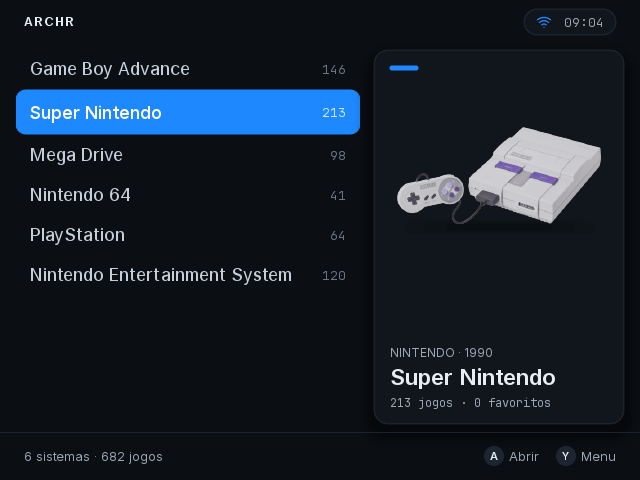
Systems
The home screen lists every system that has games in /storage/roms/<system> (and, with a second card, on that card too), plus collections and special entries:
- Favorites (
@favorites): appears once at least one game is marked with X. - Recent (
@recent): the last games you opened, newest first. - Moonlight: appears when
/usr/bin/moonlightis installed, to pair with and stream from a PC running Sunshine. - Tools (
tools): scripts in/storage/roms/tools.
The header shows ARCHR on the left and a pill on the right with the Wi-Fi icon, the clock and the battery (hidden when the battery level cannot be read). The footer shows the total of systems and games and the button hints of the current screen.
You can change the order of the list: Y › Move on a system, ↑/↓ to choose the position, A to save or B to cancel. Y › Restore default order appears once there is a saved order. See Collections.
List and Showcase views
Choose the view in Settings › Appearance › View:
- List (
lista): a vertical list on the left and a card on the right with the console picture (Systems) or the cover and details of the game (Games). - Showcase (
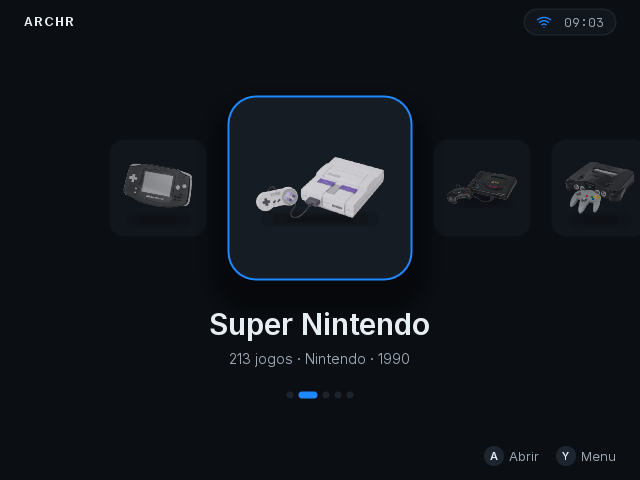
vitrine): a centered carousel of console tiles on the Systems screen (← / → to move) and, on the Games screen, a list with an accent bar next to the selected game and a large cover.
Themes can add views of their own; see Create themes.
Games
Opening a system shows its games, with names and metadata from gamelist.xml when there is one, or the file names otherwise.
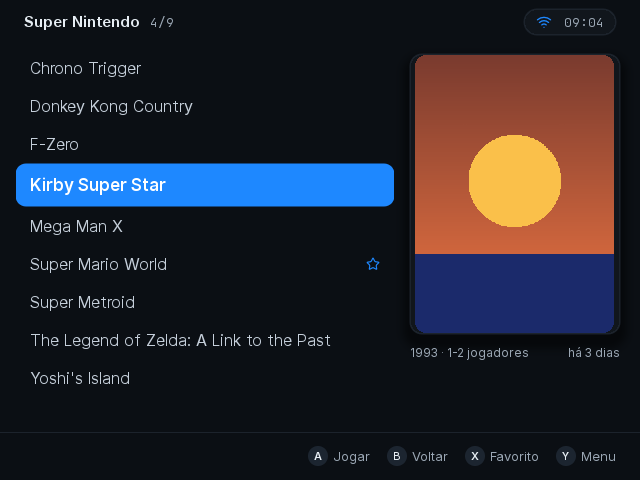
In the game list:
- A starts the selected game.
- X marks or unmarks it as a Favorite.
- L1 / R1 (or ← / →) move a whole page.
- Y opens the quick menu for that game.
Under the cover the launcher shows the year, the number of players and when you last played it, when known.
Game details
Select a game, press Y and choose Details:
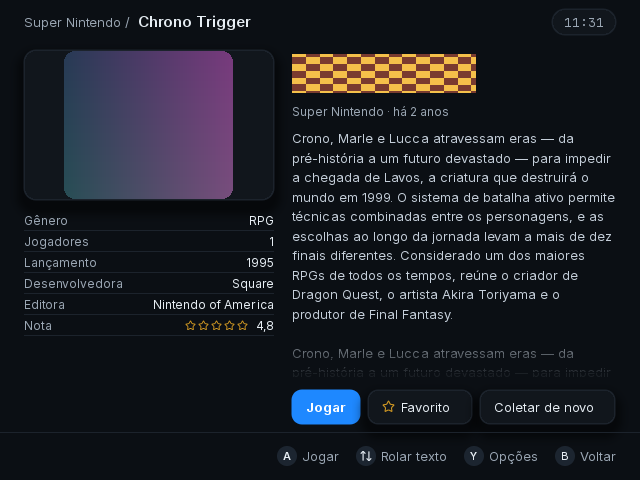
- Left: the game's screenshot (or cover) and a table with Genre, Players, Released, Developer, Publisher and Rating (stars).
- Right: the game logo (or its name), the system and when you last played it, the description (scroll with ↑ / ↓) and three buttons, chosen with L1 / R1 (or ← / →) and pressed with A:
- Play starts the game.
- Favorite adds or removes it from Favorites.
- Scrape again fetches this one game from ScreenScraper again (needs a ScreenScraper account; see Scraping).
Y on this screen opens the game's quick menu.
Start menu
START on the Systems screen opens the Start Menu:
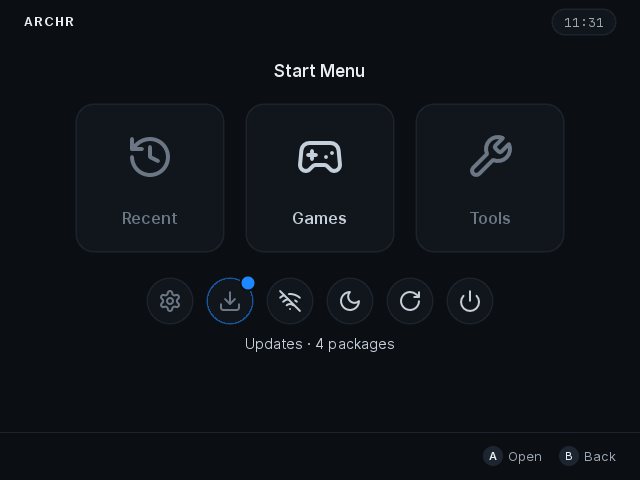
- Top tiles: Recent, Games and Tools. Recent and Tools only take focus when they have something to list.
- Bottom shortcuts: Settings, Updates (opens Settings › System › Updates; shows a dot and the number of packages when updates are waiting), Wi-Fi (turns it on or off), Sleep, Restart and Power off.
↑ / ↓ switch between the two rows, L1 / R1 (or ← / →) move inside a row, A opens, B or START closes.
Quick menu (Y)
Y opens the Quick menu, which depends on where you are:
- On the Systems screen: Settings, Netplay (only while Netplay is enabled; opens the room list), Move, Restore default order (only when there is a saved order), Sleep, Restart and Power off.
- On a game: Core (only when the system has more than one emulator/core; change it with L1 / R1 or ← / →, saved for that game), Details, Achievements (only with RetroAchievements on and an account signed in), Sleep, Restart and Power off.
Buttons
In the launcher
| Button | Action |
|---|---|
| D-pad | Move through lists, carousels and settings |
| A | Open a system, start a game or confirm |
| B | Back or close a menu |
| X | Favorite (game list); on some pages a secondary action such as Forget |
| Y | Quick menu; on some pages Refresh or System information |
| START | Start menu |
| L1 / R1 | Previous / next page in lists, change values in Settings |
These buttons can be changed in Settings › Controls › Launcher. See Controls.
In games
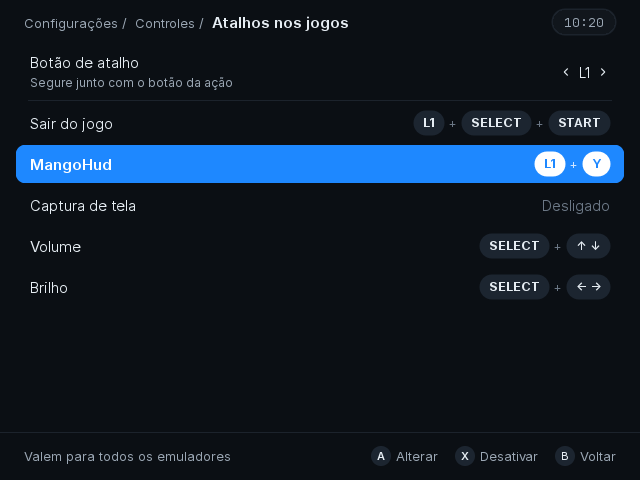
Shortcuts held with the shortcut button (L1 by default) and the function button (SELECT on RK3326). Change them in Settings › Controls › In-game shortcuts:
| Combination | Action |
|---|---|
| L1 + SELECT + START | Quit the game and go back to the launcher |
| L1 + Y | Show or hide MangoHud |
| L1 + A | Screenshot |
| L1 + X | Game guide |
| SELECT + ↑ / ↓ | Volume (off until you turn it on) |
| SELECT + → / ← | Brightness (off until you turn it on) |
Settings
Open Settings from the Start menu or with Y › Settings on the Systems screen. The home page has nine categories; Y there opens System information (processor, graphics, memory, storage, network and battery, updated live). Values are saved in /storage/.config/system/configs/system.cfg.
Network
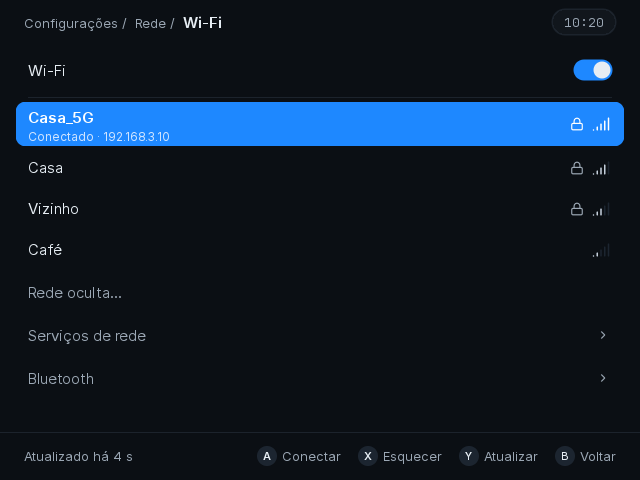
- Wi-Fi: the switch, the networks found (A connects, using the on-screen keyboard for the password; X forgets a saved network; Y searches again) and Hidden network…. WEP and 802.1X networks are not supported.
- Network services:
- SSH (remote access as
root), File sharing (Samba) (\\archron the local network) and Simple HTTP server (browser access). - Netplay (on/off) and USB function (gadget): Off, Network (ECM) or File transfer, used when connected to a PC.
- Local Play: direct Wi-Fi between devices without a router, with Player (1 to 4) and Channel (1 to 11, the same on every device). See Netplay.
- SSH (remote access as
- Bluetooth: see Bluetooth.
Sound and display
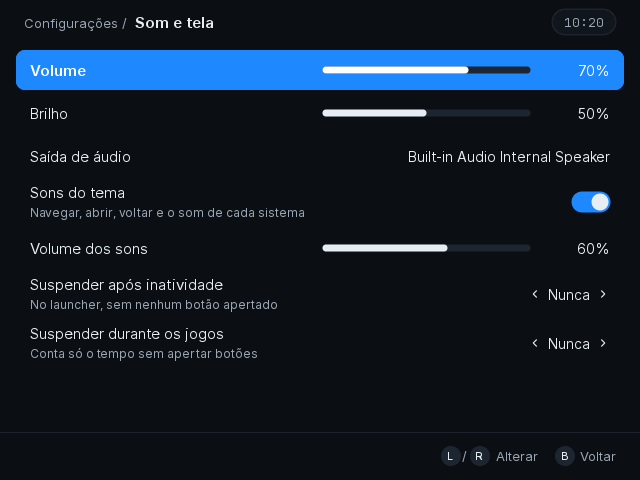
- Volume (0 to 100%) and Brightness (5 to 100%).
- Audio output: the outputs the system reports (for example the internal speaker, or a connected Bluetooth device).
- Theme sounds and Sound volume: the launcher's interface sounds; the volume is relative to the system's.
- Suspend after inactivity (in the launcher, with no button pressed) and Suspend during games (counts only time without button presses): Never, 1, 2, 5, 10, 15 or 30 minutes.
Controls
- Launcher: which button does each launcher action.
- In-game shortcuts: the shortcut button and the shortcuts listed above.
Games
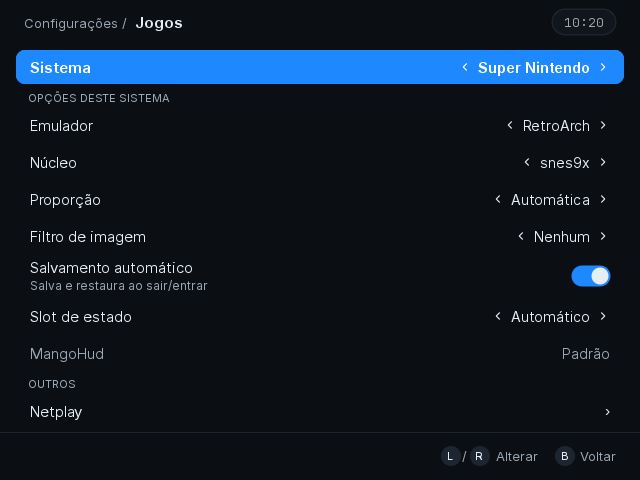
- System: which system the options below apply to (it starts at the system you were browsing).
- Options for that system: Emulator, Core, Aspect ratio (Automatic, 4:3, 3:2, 16:9, 8:7, Square pixels or Full screen), Image filter (None or Smooth), Auto save (saves on exit, restores on start), State slot (Automatic or Fixed) and MangoHud (default, on or off for that system). Each row only shows when the chosen emulator/core supports it.
- Other: Netplay (see Netplay), Scrape artwork (see Scraping) and MangoHud settings.
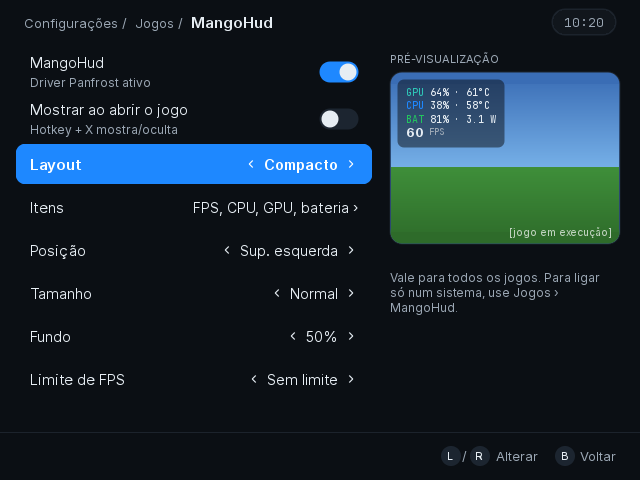
MangoHud settings turn the performance overlay on for every game and set Layout (FPS only, Horizontal, Compact, Detailed or Custom), Items, Position, Size, Background and FPS limit. MangoHud needs the Panfrost GPU driver; with Mali the page says so.
Region and language
- Language: English, Português (Brasil), Español or Русский.
- Timezone and Clock format (24 h or 12 h).
- Keyboard layout and Variant for a USB or Bluetooth keyboard.
Appearance
Changes show at once in the Preview on the right and are saved when you leave the page.
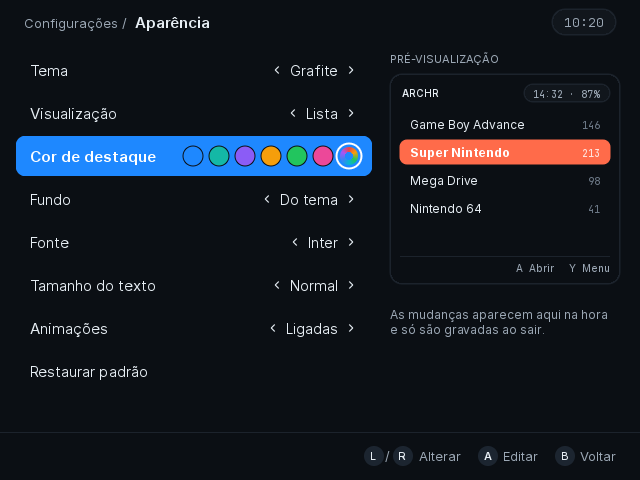
- Theme: the installed themes (default: Grafite).
- Theme store: themes published on GitHub; see Create themes.
- View: List, Showcase or a view added by the theme.
- Accent color: the first dot is the theme's own accent, then six ready colors (blue
#1E88FF, teal#14B8A6, violet#8B5CF6, amber#F59E0B, green#22C55E, pink#EC4899) and the custom color last. - Background: From the theme, Black or Midnight blue.
- Font: the theme's font (Inter in Grafite), JetBrains Mono or System.
- Text size: Small, Normal or Large.
- Animations: On, Reduced or Off (see below).
- Restore defaults: back to the theme's own look.
Custom color
With the last dot of Accent color selected, A opens the Custom color page:
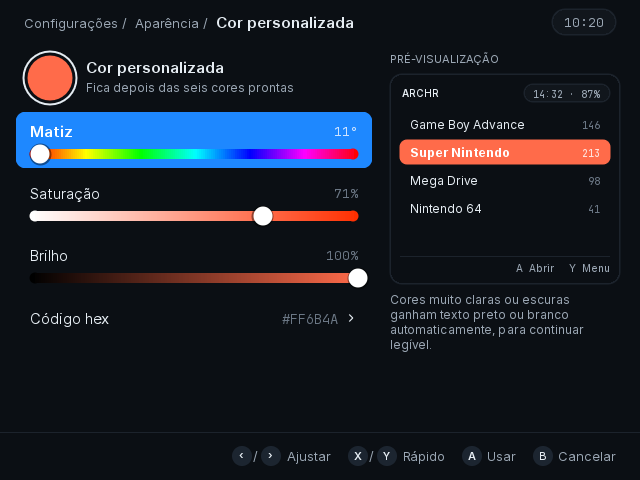
- Hue, Saturation and Brightness: ← / → adjust in small steps, X / Y in large steps; A uses the color, B cancels.
- Hex code: A opens a keyboard to type six hex digits.
- Very light or very dark colors get black or white text automatically, to stay readable.
Achievements
The RetroAchievements switch, the account and the in-game options. See RetroAchievements.
System
- GPU driver:
libmaliorpanfrost; needs a reboot, which the launcher offers. See GPU driver. - Suspend mode: Off, Default, Suspend to RAM, Freeze or Standby.
- CPU governor:
ondemand,performance,schedutilorpowersave. - CPU turbo: unlocks 1512 MHz. See Overclock.
- Update system: opens the Updates page. See Update.
Storage
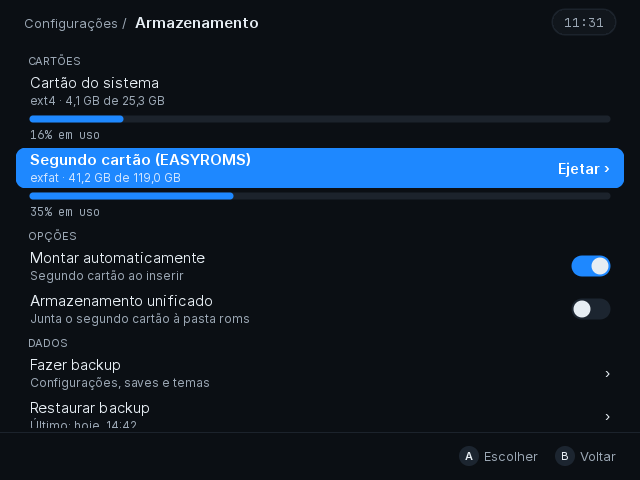
- Cards: System card and, when inserted, Second card, each with its filesystem, space used and a usage bar. Eject › unmounts the second card safely before you remove it.
- Mount automatically: mounts the second card when it is inserted.
- Unified storage: merges the second card into the
romsfolder (ext4 or btrfs only; takes effect on the next start). - Back up and Restore backup: settings, saves and themes go to the
backupfolder on the games card; Wi-Fi networks are only included if you choose, because the backup is not encrypted. - Root password (SSH): shows and changes the password used by SSH, file sharing and the web server.
- Restore factory defaults: erases settings, saves, Wi-Fi networks and passwords after two confirmations; the games and the ROM folder stay. The device restarts at the end.
Animations and sounds
Animations
Settings › Appearance › Animations:
- On: selection 180 ms, systems→games 220 ms, cover change 200 ms, menus 160 ms, notices 200 ms, switches 150 ms, opening 300 ms.
- Reduced: only short fades; nothing moves or grows.
- Off: everything is instant.
Any button ends the running animation; input never waits for it.
Sounds
The default theme has a short synthesized set (move, page, select, back, launch, quick menu, toggle, error, notice, favorite and boot). A theme can bring its own .ogg or .wav files, including one sound per system played when the cursor stops on it. Turn them off or change their volume in Settings › Sound and display (Theme sounds, Sound volume).